 Prostir
Extra monitors for KDE Plasma and Hyprland, inside a Quest 3
Real desktop outputs around you. Windows, panels and the mouse move across them as if the monitors stood on your desk.
What Prostir does
Real monitors, not pictures of windows
Each one is an output of the desktop: in KDE's System Settings → Display, in hyprctl monitors on Hyprland. Drag windows onto it, maximize them, put a panel or workspaces there.
The desktop places each monitor against its neighbour on the side where they meet in the headset, with the same offset along that edge. The mouse crosses where you see them meet, sideways or up and down.
Touch the menu
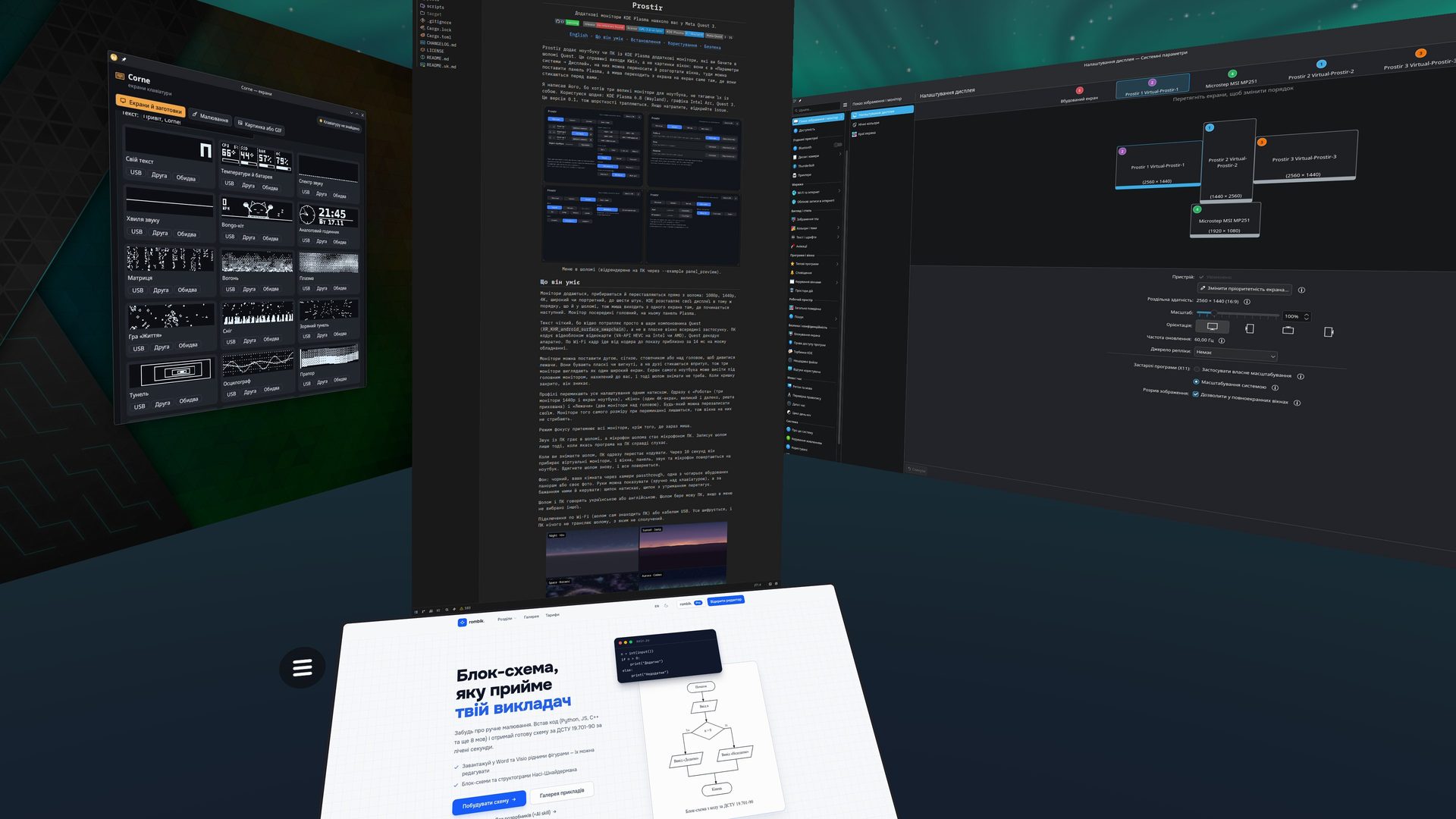
With your hands in view, the menu opens within reach and works like a touchscreen. Add a 1080p, 1440p, 4K, ultrawide or portrait monitor, pick one on the map of your monitors to make it primary or remove it, and curve them.
Turn on "Follow my head" and the monitors glide after you once you have clearly looked elsewhere.
14msfrom an encoded frame on the PC to the headset display, over Wi-Fi
This part covers the network, decoding and display. It was measured on the author's laptop (Intel Arc) with a Quest 3. It is not the whole delay from your screen to your eyes: capturing and encoding the screen on the PC add a few milliseconds more.
The PC encodes on the GPU and the Quest decodes in hardware, straight into its compositor, so text stays sharp.
Work, cinema, lying down
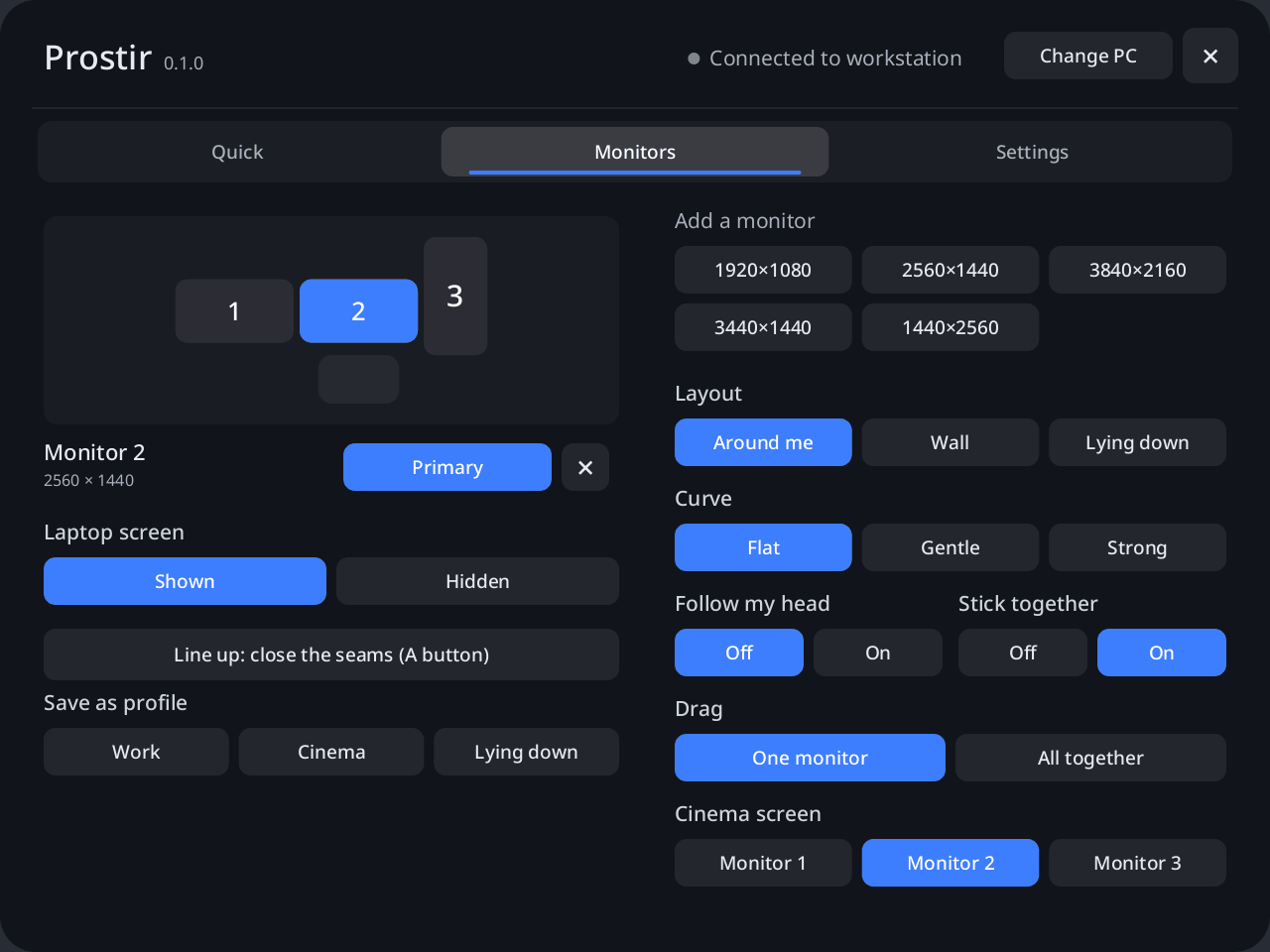
Profiles switch the monitors, the laptop screen, the layout and the background in one press. Monitors of the same size stay, so their windows do not move.
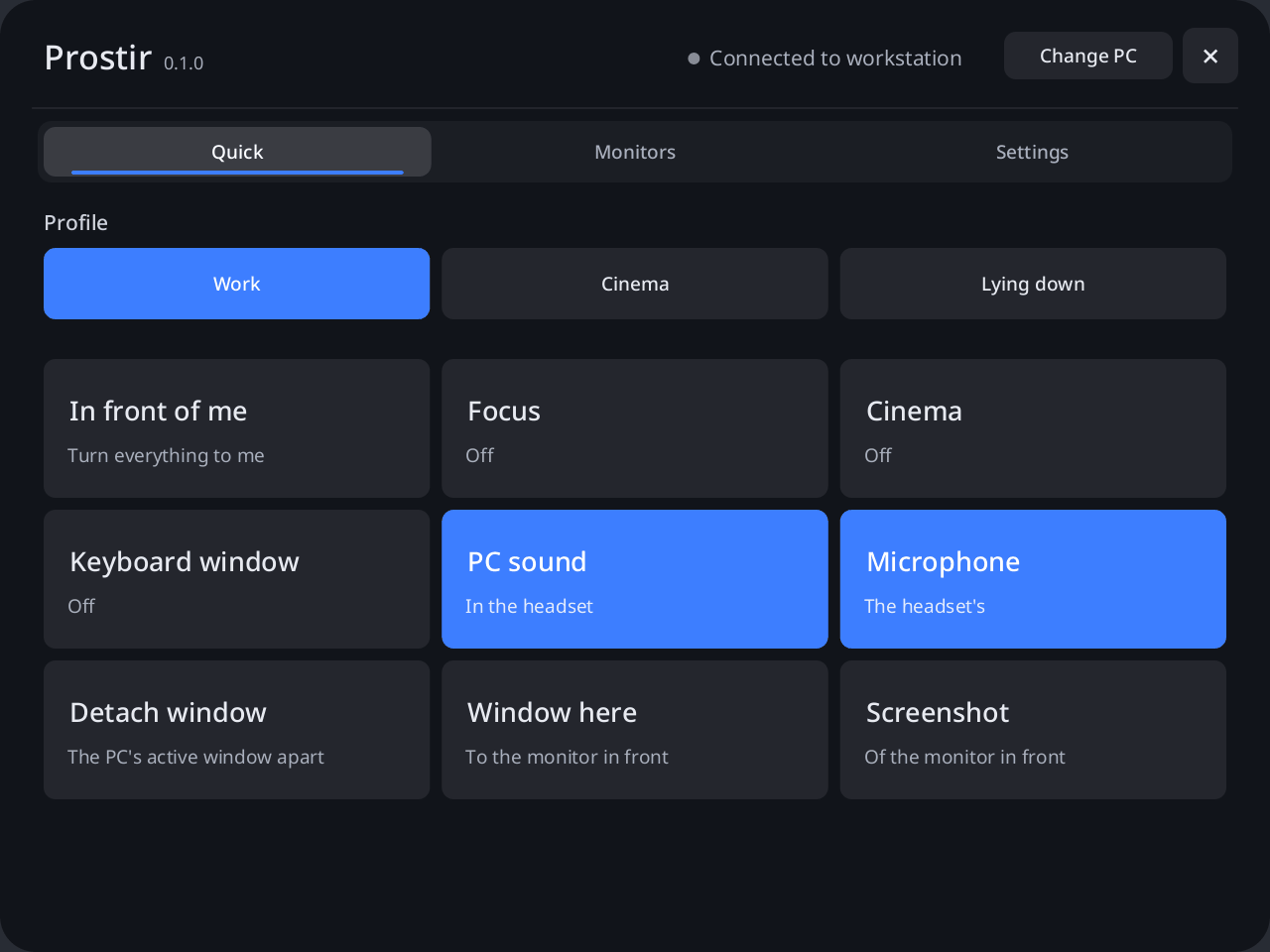
The Quick tab opens first, with the profiles and big tiles for what you switch every day: focus, cinema, PC sound, the microphone, a detached window, a screenshot.
Your room or a panorama
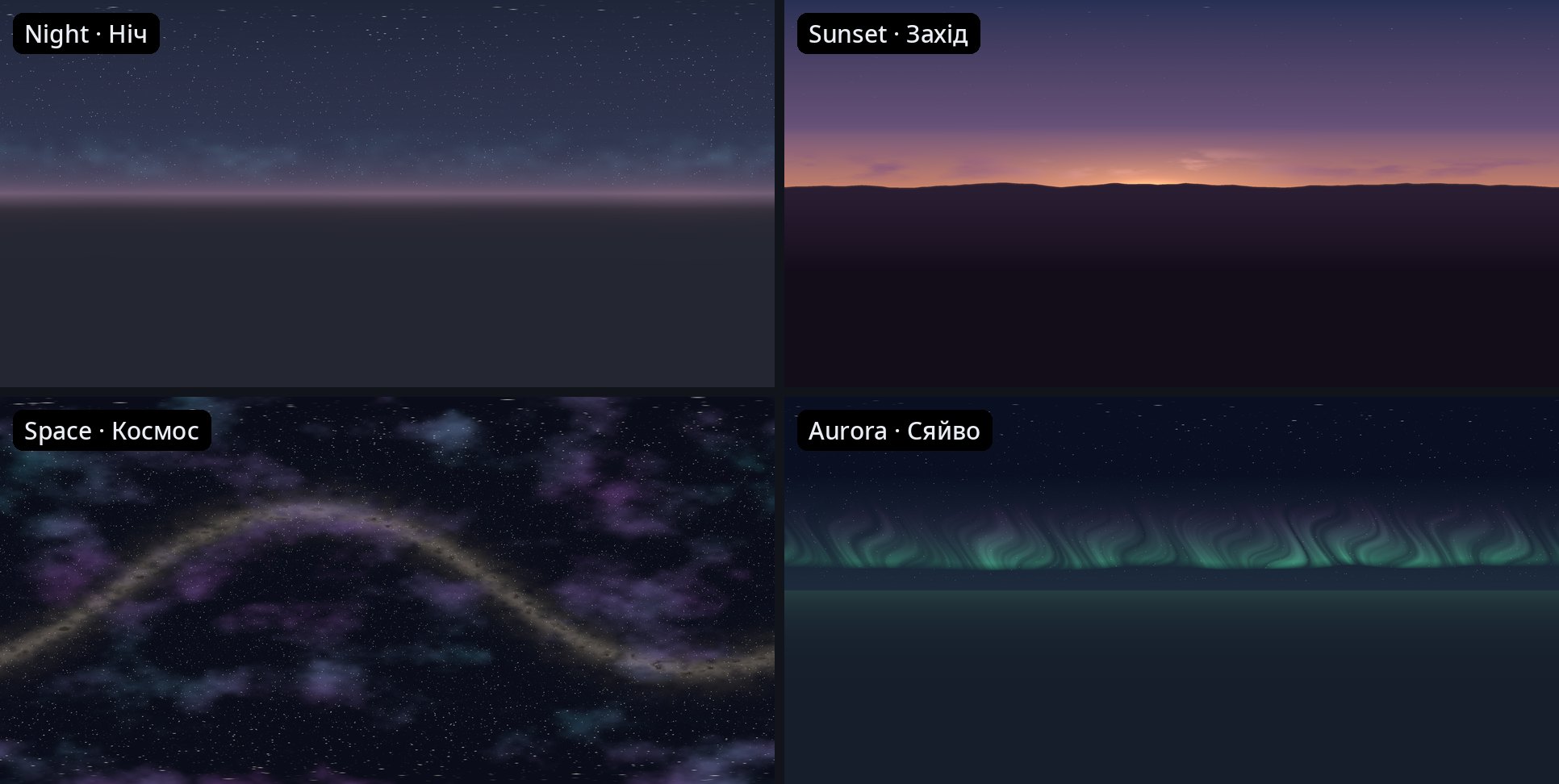
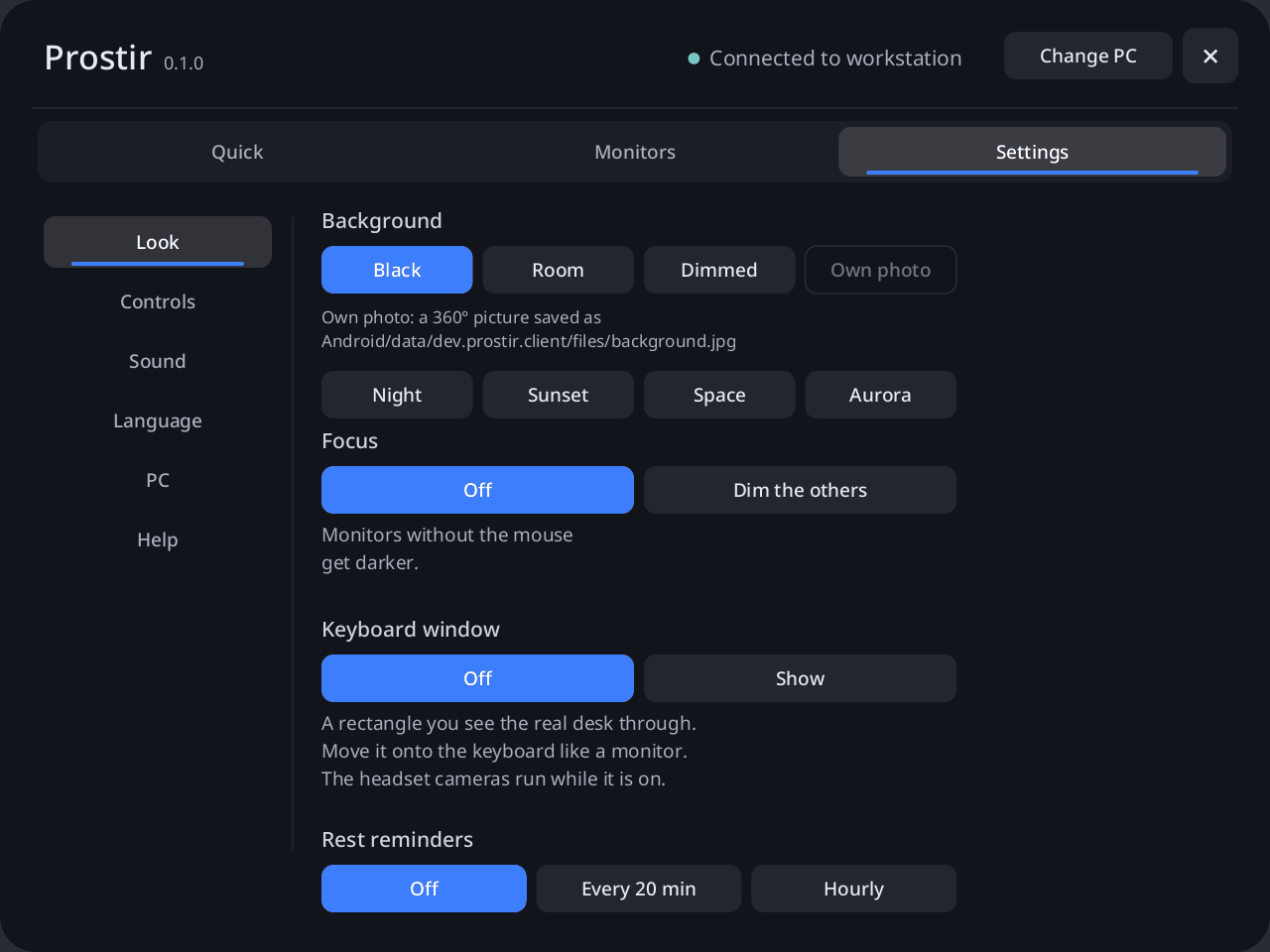
Behind the monitors: black, your room through the headset cameras, the room dimmed, a photo of your own, or one of four built-in panoramas: night, sunset, space and aurora.
Easy on your eyes and the battery
Rest reminders can ask you to rest your eyes every 20 minutes or take a break every hour. They are off until you turn them on.
The headset display can run at 72 Hz instead of 90 Hz, so the battery lasts longer. The video is 60 frames a second either way.
PC settings in the headset
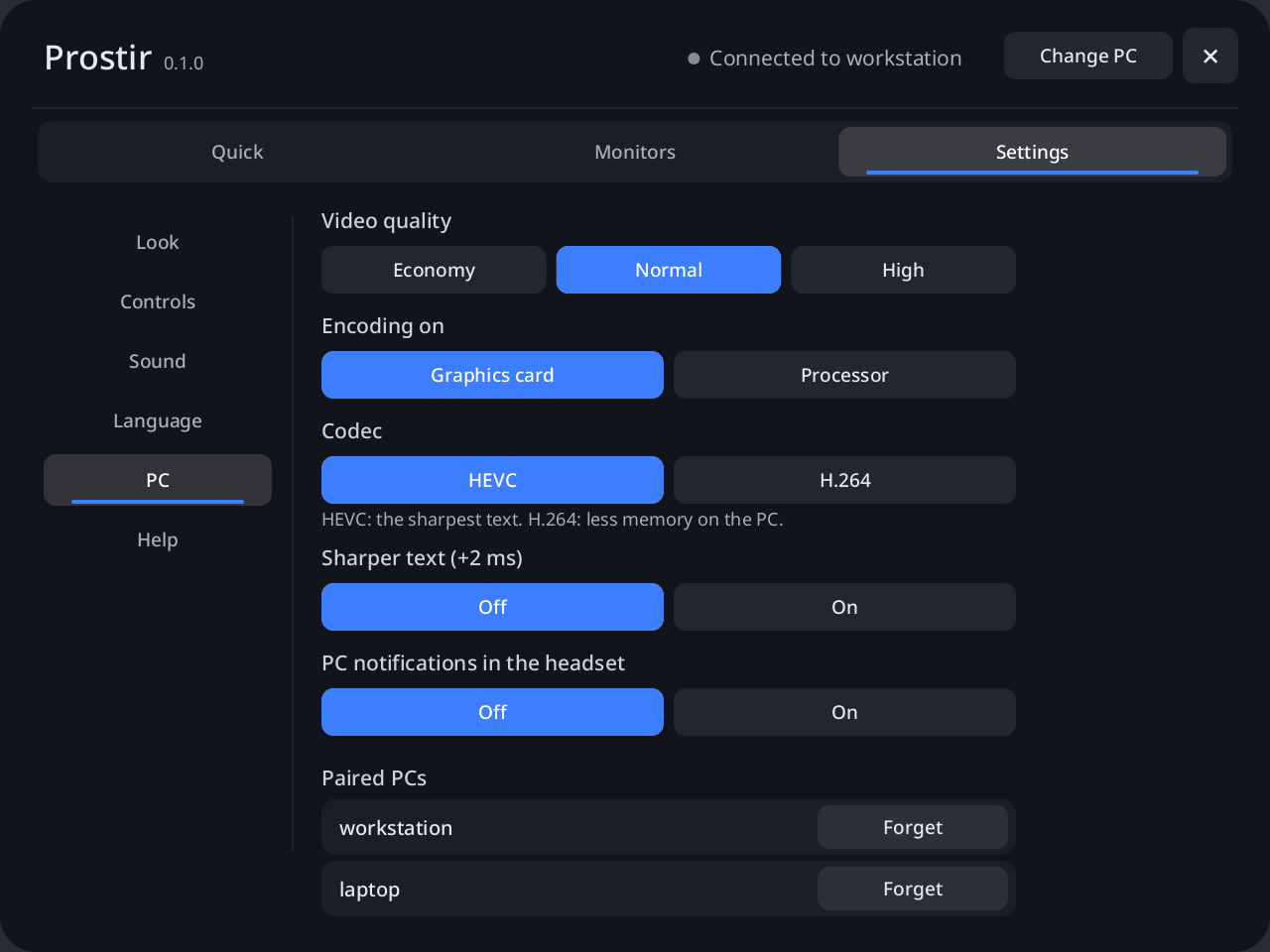
Video quality (15, 30 or 50 Mbit/s per monitor), encoding on the graphics card or the processor, HEVC or H.264, and sharper text. The PC applies them and remembers them; a new codec takes about a second, and the monitors and windows stay.
The same page turns on the PC's notifications in the headset and lists the paired PCs, each of which you can forget.
KDE Plasma or Hyprland
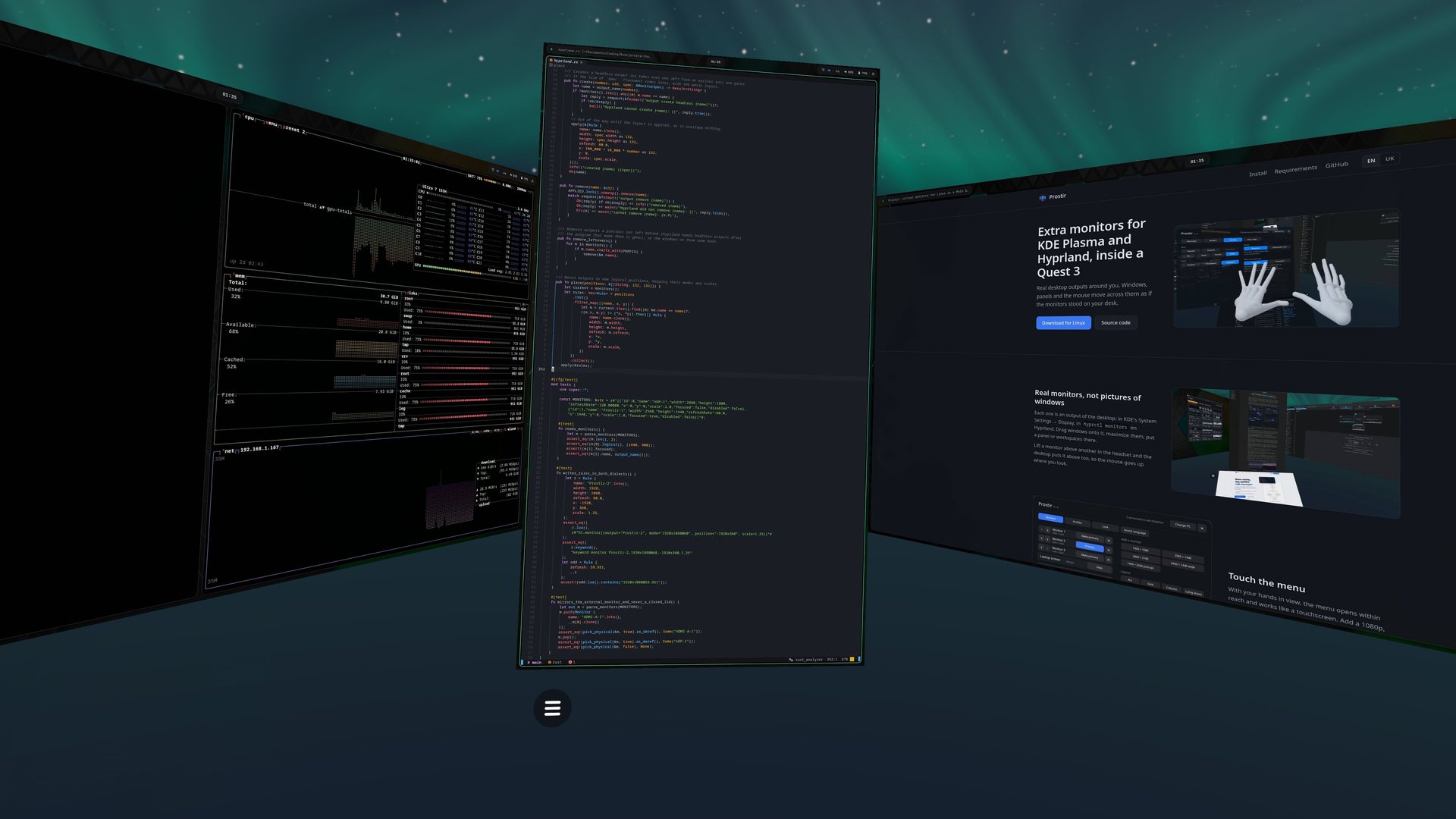
On Hyprland the monitors are headless outputs, captured straight into GPU buffers. Each gets its own Waybar and workspaces, and window rules apply to them like to any display.
The layout survives config reloads, and the monitors go away cleanly when Prostir quits. Here the mouse can also follow your gaze, jumping to the monitor you look at.
Line up and stick together
Put monitors where you like. Let one go almost against another and it sticks edge to edge. The A button closes the seams in your own arrangement: a monitor beside curves around you, one above tilts towards you like a laptop lid.
Move them all at once
With Drag set to All together, grabbing any monitor moves, turns and scales the whole arrangement as one piece.
The laptop screen too
It is part of the arrangement: wherever you put it, the PC puts it there too, so the mouse crosses where you see them meet. It disappears when you close the lid.
Focus mode
Every monitor except the one with the mouse gets darker.
Sound and microphone
PC sound plays in the headset, and PC apps hear the headset microphone while they record. The microphone switch in the headset menu turns that off.
Sound from the screen
If you turn it on, the sound comes from the side of the monitor whose window is playing it, and stays there as you turn your head.
Headset off, desk back
After 10 seconds off your head, windows, panel and sound return to the laptop.
Keyboard window
A rectangle over the real keyboard shows the desk through the cameras.
Detach a window
The PC's active window gets an output of its own and floats as a panel without a frame, closer than the monitors. Up to three at a time. "Attach" under it puts the window back on its monitor, out of full screen.
Window here, screenshot
Move the active window to the monitor in front of you, or save a screenshot of that monitor to a Prostir folder in your Pictures folder.
Find the pointer
The "Mouse?" button shows where the pointer is, with rings, on KDE and on Hyprland. On Hyprland the mouse can also follow your gaze.
Palm menu
Hold an open palm towards your face and a round menu appears on it: In front, Focus, Cinema, Mouse?, Screenshot, Line up and Menu, with the time, the date and the headset battery in the middle. Press it with the other hand. Left or right hand, as you choose.
Brightness
Dim all monitors at once for the evening: 100, 80, 60 or 40 %.
Notifications and battery
The PC's notifications can show in the headset (off until you turn them on). The tray shows the headset battery, and the PC warns you at 15 %.
Paired and encrypted
A PC streams nothing to a headset it has not been paired with. Pairing starts only after you confirm it in the headset and type a 6-digit code.
Install
Each release has both parts: the program for the PC and the app for the headset, an APK file.
On the PC
- Install Prostir in one of these ways. Use only one: the packages install to
/usr/bin, the tarball to~/.local/bin, and both together give two copies.Arch Linux and derivatives
From the AUR:yay -S prostir-binDebian, Ubuntu
Download the.debfile from the release, then:sudo apt install ./prostir_*.debFedora
Download the.rpmfile from the release, then:
Thesudo dnf install ./prostir-*.rpm.rpmis built for Fedora. On openSUSE, use the tarball below.Nix and NixOS
The repository is a flake:
On NixOS, add it as a flake input and putnix run github:OlexiyOdarchuk/prostirinputs.prostir.packages.${pkgs.system}.defaultinenvironment.systemPackages.Any distribution, without root
Downloadprostir-<version>-x86_64-linux.tar.gz, unpack it and run the installer, which installs into~/.local:
The packages above pull in GStreamer and PipeWire; with the tarball, install them yourself (see Requirements).tar xf prostir-*-x86_64-linux.tar.gz cd prostir-*/ ./install.sh --autostart
- Start Prostir from the application menu. It has no window: its icon appears in the tray. To start it with the session, turn on "Start with the system" in the tray menu.
- On Hyprland without uwsm, start it from the config instead. In
hyprland.conf:
or inexec-once = prostirhyprland.lua:
With the tarball, ifhl.on("hyprland.start", function () hl.exec_cmd("prostir") end)~/.local/binis not on yourPATH, write~/.local/bin/prostirinstead ofprostir. Ifecosystem:enforce_permissionsis on, also allow screen capture, inhyprland.conf:
or inpermission = /usr/(local/)?bin/prostir|.*/\.local/bin/prostir, screencopy, allowhyprland.lua:hl.permission("/usr/(local/)?bin/prostir|.*/\\.local/bin/prostir", "screencopy", "allow")
On the headset
- Make your Meta account a developer account: create or join an organization at developers.meta.com. It is free, but Meta may ask you to verify the account. Without it, the developer mode switch does not appear.
- Turn on developer mode in the Meta Horizon phone app: Devices → Headset settings → Developer mode.
- Install
adbon the PC: theandroid-toolspackage on Arch, Fedora and openSUSE,adbon Debian and Ubuntu. - Connect the headset to the PC with a USB cable and put it on. Accept "Allow USB debugging", ideally with "Always allow from this computer". Now
adb deviceslists the headset asdevice, notunauthorized. - Install the APK from the same release:
adb install prostir-*.apk - In the headset, open the Library, pick Unknown sources in the filter and start Prostir. Some Horizon OS versions list it there by its package name,
dev.prostir.client. - The headset finds the PC on the same Wi-Fi network or over the cable; when it finds exactly one PC, it connects by itself. The first time, the headset shows "A new PC" with the PC's name: press "Pair", then type the 6-digit code it shows into the dialog that opens on the PC. A 2560×1440 monitor appears; add more in the menu's Monitors tab.
Over the cable, the PC forwards the connection with adb, so USB needs adb on the PC and developer mode on the headset. Wi-Fi needs neither once the app is installed.
Connect with a USB cable
A cable helps on networks that keep devices apart (hotels, offices, some mesh routers), keeps the Wi-Fi free and gives the steadiest picture.
- Set up developer mode and
adbas in the headset steps above, and allow USB debugging in the headset ("Always allow from this computer").adb devicesmust list the headset asdevice; if it saysunauthorized, plug the cable in again and answer in the headset. - Use a USB-C cable that carries data, not a charge-only one. A USB 3 port is best; USB 2 is enough for three monitors at the normal quality.
- Start Prostir on the PC, or leave it running. Every few seconds it looks for headsets on USB and runs
adb reversefor them. - Open Prostir in the headset. It tries the cable before Wi-Fi, and the menu says "Connected to PC (USB)". Pairing is the same as over Wi-Fi, once per PC.
Unplug the cable and the headset goes back to Wi-Fi by itself. prostir --no-adb stops the PC from touching adb. A laptop port usually charges the headset slower than it drains, so for long sessions charge it beforehand or use a powered hub.
Update
- AUR: with your usual system update, for example
yay -Syu. .debor.rpm: install the newer file the same way.- Tarball: unpack the new release and run
./install.shagain. - Headset: install the new APK over the old one; settings and pairings stay.
adb install -r prostir-*.apk
Update both sides when you can. Versions a little apart still work together, because each side skips messages it does not know. If they are too far apart, the headset says which side to update.
Uninstall
- AUR:
sudo pacman -R prostir-bin. Debian, Ubuntu:sudo apt remove prostir. Fedora:sudo dnf remove prostir. - Tarball: run
./install.sh --uninstallin the unpacked folder. - Settings and pairings stay in
~/.config/prostir. Delete that folder to remove them, and~/.config/autostart/prostir.desktopif you turned on autostart. - Headset:
adb uninstall dev.prostir.client, or uninstall it from Unknown sources in the Library.
Requirements and limits
PC
- KDE Plasma 6 or Hyprland, on Wayland. X11 sessions are not supported.
- GNOME is not supported yet. Want it? Vote with a 👍 on GitHub.
- PipeWire with its PulseAudio server (
pipewire-pulse),pw-cli,pw-loopbackandpactl, and GStreamer 1.24 or newer with its PipeWire and PulseAudio plugins. - For encoding on the GPU: VA-API H.264 or HEVC encoding and the GStreamer
vaplugin (gst-plugin-vaon Arch, part of gst-plugins-bad elsewhere). Tested on Intel; AMD through Mesa should work but is untested. - NVIDIA: NVENC through the GStreamer
nvcodecplugin, experimental and untested. - Without a GPU encoder, Prostir encodes on the CPU with x264, which works everywhere and needs
x264encfrom gst-plugins-ugly. See Help. - For pairing, one of
kdialog,zenity,fuzzel,wofiorrofito show the code dialog. - On Hyprland, a bar with a tray for Prostir's menu (Waybar with its
traymodule), and a notification daemon such as mako, dunst or swaync. - A firewall, if you have one, must allow TCP 47830 and UDP 47831. See Help.
- For USB:
adbon the PC. - For screenshots on Hyprland:
grim. On KDE, Prostir takes the picture from the monitor's own stream and usesspectacle(the whole desktop) only if that fails.
Headset
- Meta Quest 3 or 3S, which Prostir is made for (tested on Quest 3). Quest 2 and Pro are untested.
- Developer mode to install the app; it is not in the Horizon Store yet.
- One headset per PC at a time.
Version 0.1, used every day by its author on Plasma 6.8 and Hyprland 0.57 with Intel Arc graphics. Problems and ideas go to GitHub issues.
Help
The headset lists the PC but does not connect
Usually a firewall. The PC accepts the connection on TCP port 47830 and announces itself on UDP port 47831; allow both. With ufw:
sudo ufw allow 47830/tcp
sudo ufw allow 47831/udp
With firewalld:
sudo firewall-cmd --add-port=47830/tcp --add-port=47831/udp --permanent
sudo firewall-cmd --reload
The headset does not find the PC
Both must be on the same network, and the network must not isolate its devices from each other, as guest networks often do. Type the PC's IP address on the keypad in the headset menu, or connect with the cable (needs adb).
If the PC is behind a firewall, check the ports above too.
NVIDIA, or the headset says an encoder is missing
Prostir encodes on the GPU through VA-API, or on NVIDIA through NVENC (the GStreamer nvcodec plugin, experimental and untested). When neither is available, it switches to the CPU and encodes with x264 by itself. This happens without the GStreamer va plugin, when NVENC does not work, and with the Mesa that Fedora and openSUSE ship, which leaves out H.264 and HEVC encoding.
The CPU path needs x264enc: gst-plugins-ugly on Arch, gstreamer1.0-plugins-ugly on Debian and Ubuntu, gstreamer1-plugins-ugly from RPM Fusion on Fedora, gstreamer-plugins-ugly from Packman on openSUSE. If neither path works, the headset shows what is missing. prostir --software always encodes on the CPU.
Nothing appears after starting Prostir on Hyprland
Prostir has no window; its menu is in the tray, and Hyprland has no tray of its own. Add a bar with one, for example Waybar with the tray module. For its notifications, run a notification daemon such as mako, dunst or swaync.
No pairing dialog opens on the PC
Install one of kdialog, zenity, fuzzel, wofi or rofi. Or press the button under the code in the headset to swap sides: the PC then shows a code in its tray menu, and you type it in the headset.
Does Prostir send anything about me?
Nothing that identifies you or your PC. Official builds count each PC once a day, anonymously, and you can turn that off in the tray ("Count this PC among users") or with PROSTIR_NO_COUNT=1. The privacy policy has the details.
Logs for a bug report
PC: run prostir in a terminal; RUST_LOG=debug prostir adds more detail. Headset: adb logcat -s prostir. Then open an issue on GitHub.